

Confluence version-aware approvals link a review decision to the page version that was reviewed. If version 5 was approved and someone publishes version 6, the old sign-off does not prove that version 6 was reviewed. You need to see the mismatch and decide whether to submit the current version for another review.
ApprovalFlow for Confluence tracks approvals with page-version context and stale detection. It reviews published pages using a soft workflow, so a review decision is not a publishing gate. This guide explains how to test that distinction and establish a resubmission process.
How Confluence version-aware approvals handle an edit
Consider a policy page with a reviewed revision:
- The author submits version 5 for review.
- The assigned reviewers approve that version.
- Another editor changes the policy and publishes version 6.
- The owner checks the current version against the approved version and submits the new revision if another review is required.
The original decision remains evidence about version 5. It should not be used as evidence about the new policy text. This is a version mismatch, not proof that the original reviewer made a mistake.
The decision applies to the revision the reviewers checked.
The page has changed. Earlier approval does not cover the new text.
A new submission captures the current page version for another decision.
The owner submits the new version. Stale detection is not an automatic restart of the review workflow.
Confluence page history lets you inspect revisions. An approval process adds the reviewer decision and its context. When evaluating any tool, test those together instead of relying on a page-level Approved label.
Where ApprovalFlow exposes version context
Authors and reviewers use ApprovalFlow’s page byline for submission and decisions. The byline documentation shows the Request approval, Approve, and Reject flows and the resulting approval states.

This screenshot shows an approved outcome. It is not a screenshot of stale detection or proof that the page is locked.
For an explicit current-versus-approved comparison, use Change Sets. Each page in a Change Set exposes:
- The current Confluence page version.
- The approved-at version, if there is one.
- Whether that approval is stale.
- The version difference between the two.
The Change Set’s computed rollup can become stale when an approved page has been edited. Related pages share the bundle’s title, summary, and reference link, but reviewers still approve or reject each page individually. A bundle is not one blanket approval for every future change to its pages.
Do not treat every version difference as equally important. A change from version 5 to version 6 tells you that a revision occurred; it does not tell you whether the author changed a comma or a security requirement. Review the page history to understand the content change.
Resubmit the current version rather than assuming a reset
An edit does not automatically restart the workflow. Stale detection tells you that an earlier decision no longer describes the current content. Resubmission asks reviewers to make another decision.
A practical author workflow is:
- Open the page and check the revision that needs review.
- Confirm the workflow assignment and that the workflow is enabled.
- Open the byline panel and use Request approval when available.
- Check that the new request is In Approval and that reviewers can find it.
- Review the outcome alongside the submitted version and decision comments.

In Approval indicates a submitted request. An edit alone is not a new request.
Manage Space documents that new submissions create fresh ApprovalFlow records tied to the current page version. It also distinguishes assignment from submission. If the page is missing from the queue, check whether an author actually submitted it after assignment.
Do not routinely use the administrator’s reset action to handle edits. Reset clears the page’s approval state and affects queue and analytics views; it is intended for deliberate cleanup or correction. Historical Confluence comments and page history remain, but they should not be confused with an untouched current approval record.
Set expectations for changes requested and later edits
When a reviewer requests changes, the author needs to know what to fix and when to request another decision. Keep the reason in the decision conversation rather than an unrelated chat.
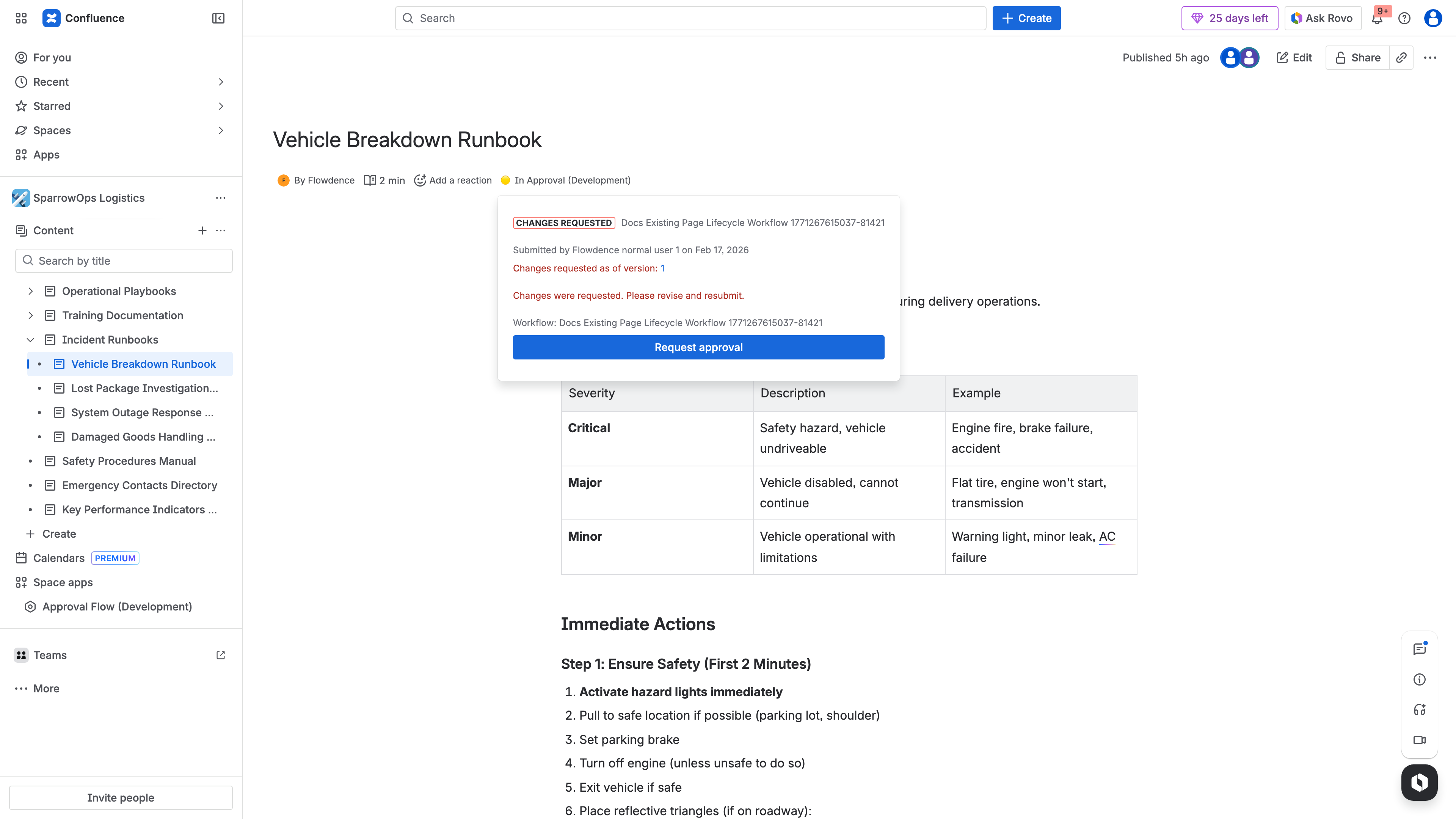
A requested change is a review outcome, not a technical restriction on editing the page.
Set a rule your team can follow:
| Change | Example review expectation |
|---|---|
| Policy or security requirement | Submit the current version for the required owner review. |
| Technical procedure | Ask the responsible specialist to verify the changed steps. |
| Formatting or typo correction | Follow your documented exception rule; do not silently describe an old decision as approval of the new revision. |
| Several related pages | Use a Change Set for shared context, and confirm the outcome of every included page. |
These are process examples, not built-in ApprovalFlow rules. Your organization decides which changes require re-review and who is responsible for requesting it.
Version awareness does not block publication
ApprovalFlow does not block publication, enforce hard content locks, or replace Confluence permissions. A page remains viewable during review according to its existing permissions. Someone with the relevant Confluence rights can publish changes before reviewers decide.
If your policy says readers must only see approved content, version-aware approval records alone do not meet that requirement. Evaluate a separate access or publishing control and test it with a reader account. Do not interpret an orange, green, or other status indicator as an access restriction.
For the broader choice between statuses, review workflows, and publishing controls, see the Confluence page approval workflow guide. For competing workflow models, use the ApprovalFlow, Comala, and AppFox comparison.
Test the approve-edit-resubmit cycle on a real page
Before rollout, use a non-sensitive page and separate author and reviewer accounts:
- Note the current page version and submit it for approval.
- Approve it and inspect the decision record and lifecycle comments.
- Publish an edit to create a later version.
- Compare the current and approved-at versions in a Change Set and check the stale state.
- Submit the current version for review, then verify that the new request carries that version’s context.
- Confirm what a reader can see before, during, and after the review.
Use Approval Queue to locate records and the comments and audit trail guide to understand the lifecycle conversation. Combine them with Confluence page history when checking which content a decision covers.
Version-specific evidence can support internal document controls. It does not guarantee ISO 27001, SOX, HIPAA, or other compliance, and this workflow does not establish approval before publication. Agree on retention, access, review exceptions, and evidence requirements with your compliance owner. See Confluence approval audit trails for an evidence checklist.
Put the review process in place
If your team needs version-aware review while pages remain accessible, start with the ApprovalFlow workflow setup guide and the multi-step tutorial. Run the edit-and-resubmit test before expanding beyond one space.
The ApprovalFlow product overview explains the review model. Check current pricing and installation options on Marketplace for your Confluence site rather than relying on an old per-user quote.
Frequently asked questions
What is a version-aware approval in Confluence?
A version-aware approval links a review decision to a specific Confluence page version. It distinguishes the version that was approved from the current page, so an earlier sign-off is not treated as evidence that later edits were reviewed.
What happens when an approved page is edited?
The previous decision still describes the earlier version, not the edited content. ApprovalFlow tracks version context and exposes stale approvals. In Change Sets, you can compare the current version, approved-at version, stale state, and version difference.
Does an edit automatically restart the approval workflow?
No. An edit does not automatically restart the workflow. Stale detection and a new review request are separate actions: the owner needs to submit the current page version for review when the team’s policy requires another decision.
Can ApprovalFlow stop unapproved edits from being published?
No. ApprovalFlow reviews published pages through a soft workflow. It does not block publication, enforce hard content locks, or replace Confluence permissions. Use separate access or publishing controls if unapproved changes must remain hidden.
Do version-aware approvals guarantee compliance?
No. Version-specific decisions can support document-control evidence, but compliance depends on your organization’s requirements and operating controls. Confirm review rules, permissions, retention, and evidence needs with your compliance owner.