
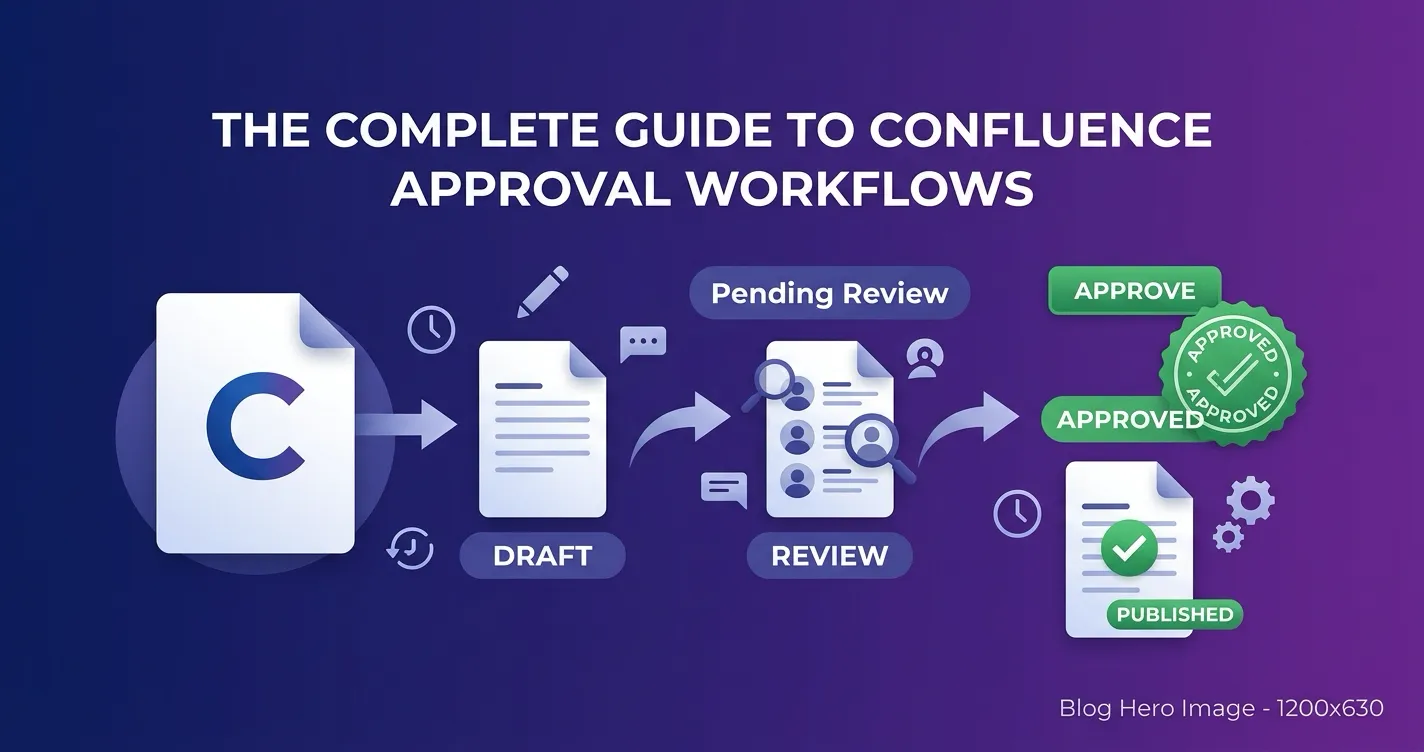
To create a Confluence page approval workflow, define who reviews a page, configure the review steps, submit the page, and record the decision against the version reviewed. Native content statuses can signal readiness for review. Use an approval app when you need assigned reviewers, sequential decisions, version tracking, and a queue of pending work.
ApprovalFlow for Confluence supports that review process for published pages. It is a soft workflow: an approval decision records sign-off, not permission to publish. This distinction matters before you choose an app or write a document-control policy.
Choose a Confluence page approval workflow that fits the job
Start with one page type, such as an operating procedure or a security policy. Write down:
- Who owns the content and who is authorized to approve it.
- Whether one review is enough or different teams must review in sequence.
- Whether readers can see the page while review is pending.
- What should happen when someone edits an approved page.
- Which records your team needs to retain and retrieve later.
A technical review followed by a policy-owner review is a reasonable two-step process. Adding a third stage only helps if it checks something the first two do not. Meeting notes may need no formal approval at all.
Warning: If your requirement is to hide unapproved changes or stop publication, test that control separately. A status badge and an approval record do not, by themselves, restrict access.
Use a content status and an agreed reviewer. Record the page version in the review comment.
Use assigned reviewers, version-aware decisions, and a queue to track pending work.
Evaluate access and publishing controls separately from review status.
Choose by the control you need, rather than the number of workflow features.
What native Confluence statuses can and cannot tell you
Atlassian’s content status documentation describes statuses as a way to set expectations for readers and collaborators. Space admins control the available statuses, and people with edit permission can set them. Suggested statuses include Rough draft, In progress, and Ready for review.
That is useful for an informal process:
- The author sets Ready for review and asks a colleague to check the page.
- The reviewer reads the page and leaves a decision comment naming the version reviewed.
- The owner follows up on missing decisions and checks later edits.
Comments and version history provide context, but someone must maintain the connection between the decision and the reviewed revision. Do not treat an Approved label alone as proof that every required reviewer signed off.
Confluence automation can help with notifications and status updates. Its available actions include changing a page status. Check your plan and rule configuration before depending on automation; a notification rule is not the same as a reviewer decision.
How to compare approval workflow apps
Compare the actual product and Cloud edition you intend to install. AppFox’s Approvals for Confluence and Workflows for Confluence are different apps; their features should not be mixed together.
| Option | What to evaluate |
|---|---|
| ApprovalFlow for Confluence | Version-aware review of published pages, sequential steps, byline decisions, Approval Queue, and Workflow Analytics. It uses a soft workflow rather than hard content locks. |
| Comala Document Management | The vendor documents configurable document lifecycles, role-based reviews, e-signatures, expirations, and document activity reporting. Test the workflow and access configuration your policy needs. |
| AppFox Workflows for Confluence | The vendor documents a drag-and-drop workflow builder, multi-stage approvals, content restrictions, expiry, and publishing controls. Check those separately from AppFox Approvals. |
Sources: Comala Cloud listing, AppFox getting started, and ApprovalFlow documentation, checked on October 21, 2026. These are documented capabilities, not results from a hands-on competitor benchmark.
For a more detailed evaluation checklist, see ApprovalFlow vs Comala vs AppFox. Use current Marketplace quotes at your site size instead of old install counts or headline per-user rates.
Set up the workflow in ApprovalFlow
1. Create or import an enabled workflow
After a Confluence admin installs the app, open ApprovalFlow in the target space and use the Workflows tab. Create a workflow, name the review stages, and assign the reviewers. ApprovalFlow supports single-step and multi-step sequential workflows. You can also import a workflow from another space.
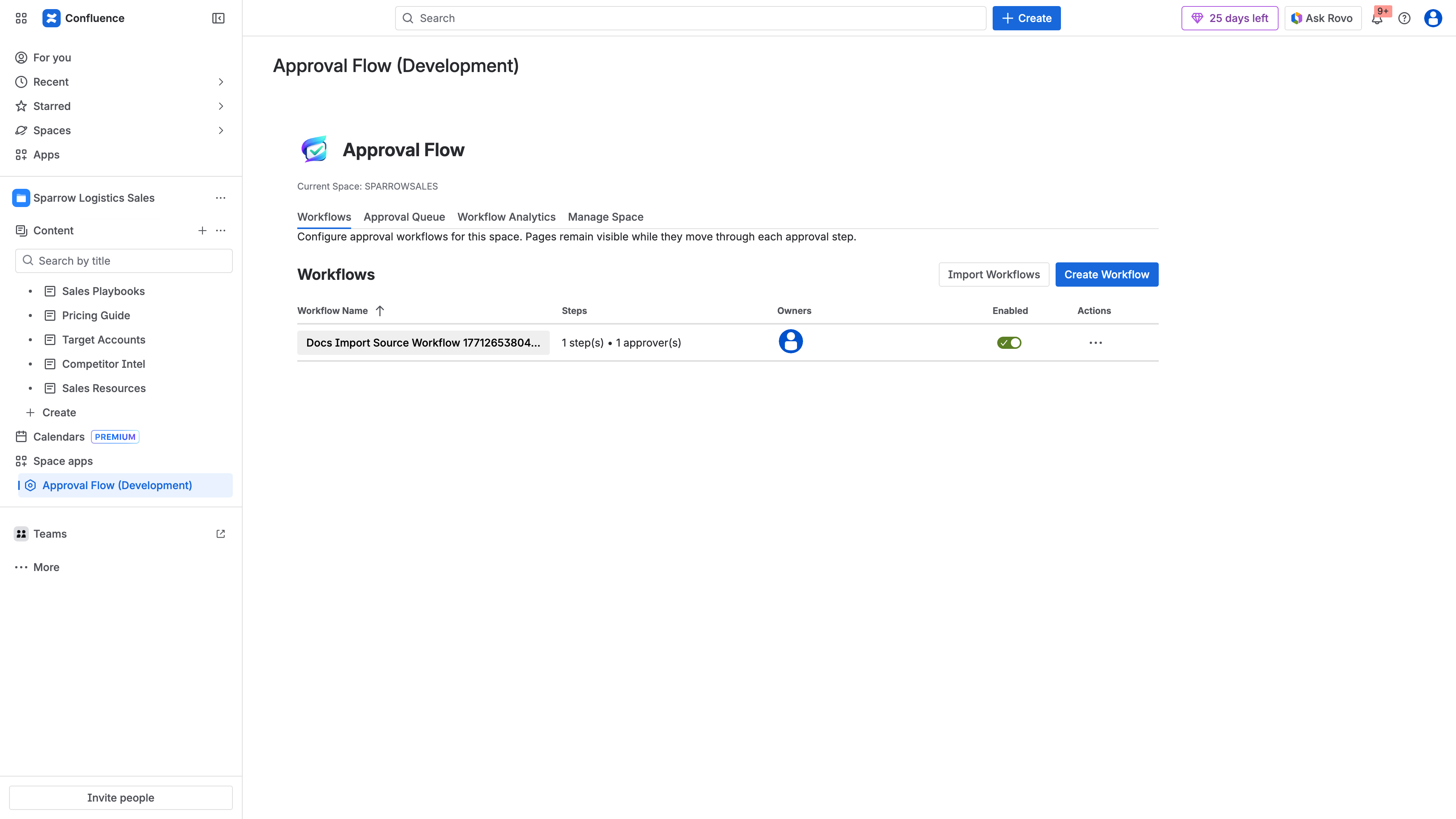
Check that the intended workflow is enabled before asking authors to submit pages.
Use the workflow configuration guide for creation, editing, duplication, and cross-space import. Keep reviewer assignments explicit so authors know whose decision they are waiting for.
2. Check page-to-workflow assignment
For an existing space, use Manage Space to inspect the page tree, approval status, and assigned workflow. Assigning a workflow is not the same as submitting a page.
Change Set submission uses the single active workflow automatically when a space has only one. With multiple active workflows, pages need an explicit assignment. Confirm assignments before a bulk review rather than discovering missing ones after submission.
3. Submit the published page from the byline
The author opens an existing published page, opens the ApprovalFlow byline panel, selects the workflow where needed, and chooses Request approval when available. The state changes to In Approval. ApprovalFlow posts an approval-request comment and uses page comments to notify reviewers.
ApprovalFlow does not block publication or lock content during review. Readers’ access still depends on Confluence permissions. If your policy requires pre-publication approval, a review of an already published page does not satisfy that requirement on its own.
4. Review, decide, and resolve changes
The assigned reviewer opens the byline panel and chooses Approve or Reject, adding the decision context. Use clear rejection comments: name what needs correcting and who should make the change. In a sequential workflow, review proceeds through the configured stages.
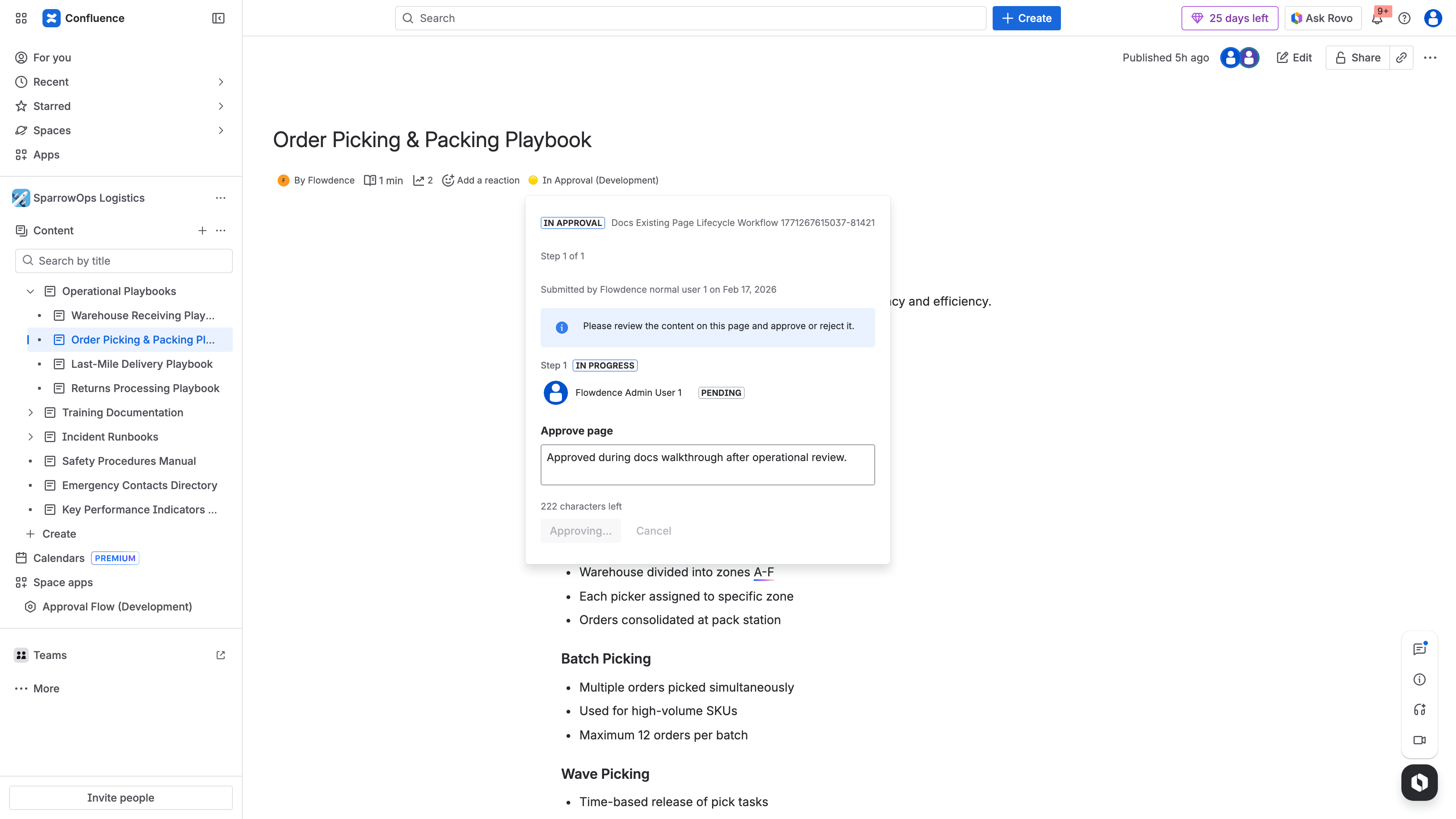
An approved outcome records the review decision. It does not make the page read-only.
See the byline decision guide for the author and approver flows. The multi-step approval tutorial provides a longer setup walkthrough.
5. Monitor pending work and outcomes
Use Approval Queue for pending, approved, and rejected records. Use Workflow Analytics to filter by workflow and date range and inspect submissions and status distributions.
A useful rollout check is whether the owner can find an overdue review without asking the author for a link. Do not assume every reminder or escalation your policy needs is configured simply because a queue exists.
Handle edits after approval without losing version context
Suppose version 5 of a policy is approved and someone publishes version 6. The decision about version 5 does not establish that version 6 was reviewed.
ApprovalFlow tracks page-version context. Its Change Sets view compares the current version with the approved-at version and exposes stale state and version difference. A Change Set can group related pages, but reviewers still decide on individual pages.
An edit does not automatically restart the workflow. Define who submits the current version again, when re-review is required, and how the owner confirms the new decision. Do not use an administrative reset as a routine substitute for resubmission: resets clear page approval state and affect queue and analytics views.
Read version-aware approvals in Confluence for a concrete approve-edit-resubmit test.
Keep evidence your team can actually use
Before rollout, try retrieving the following for a test page:
- The page version submitted for review.
- The reviewers and their decisions.
- Submission and decision dates.
- The reasons for requested changes.
- The relationship between the reviewed revision and today’s page.
Combine ApprovalFlow records with Confluence page history and the lifecycle comment thread. Confirm retention and export needs with the people who will use the evidence. Comments are useful context; do not describe them as an immutable regulatory archive.
An app does not guarantee ISO 27001, SOX, HIPAA, or other compliance. Your organization must determine the applicable requirements and implement the surrounding controls. For an evidence checklist, see Confluence approval audit trails.
Try one complete review before rolling out
Use one non-sensitive published page and two reviewers. Submit it, request a correction, revise it, resubmit, and approve. Then edit the approved page and check the current-versus-approved version before starting another review. Confirm that everyone understands what readers can see while approval is pending.
If that process matches your needs, review the ApprovalFlow product overview and follow the first-workflow tutorial. Check current Marketplace pricing and installation options for your Confluence site before purchasing.
Frequently asked questions
How do I create a Confluence page approval workflow?
Define the reviewers and review steps, configure a workflow in your chosen app, and submit a page for review. With ApprovalFlow, authors submit published pages from the byline; reviewers approve or request changes, and the decision retains page-version context.
Are Confluence content statuses the same as approvals?
No. A native content status communicates where content is in its lifecycle. A reviewer decision tied to a page version needs a separate review process; setting a status alone is not evidence that the required reviewers approved that version.
Does ApprovalFlow prevent publication before approval?
No. ApprovalFlow reviews published pages using a soft workflow. It does not block publication, lock content, or replace Confluence permissions. If readers must not see unapproved changes, you need a separate access or publishing control.
What happens after an approved page is edited?
The earlier decision applies to the earlier page version. ApprovalFlow provides version-aware tracking and stale detection. An edit does not automatically restart the workflow; the author must submit the current version for another review when required.
Does an approval workflow guarantee compliance?
No. Approval records can support your document-control evidence, but compliance depends on your policies, permissions, retention requirements, and how people operate the process. Validate the evidence with your compliance owner before relying on it.